Getting started
Sign in
Section titled “Sign in”Placeful has no passwords. Enter your email and a 6-digit code comes back; type the code and you are in. Codes arrive from Placeful ([email protected]), so check spam the first time.
Your first capture
Section titled “Your first capture”When your inventory is new, Placeful offers a short walkthrough on the Home screen. It starts with one drawer, on purpose. Photograph the drawer’s contents, watch each thing become a card, and try searching for one of them. That loop is the whole idea; everything else builds on it.
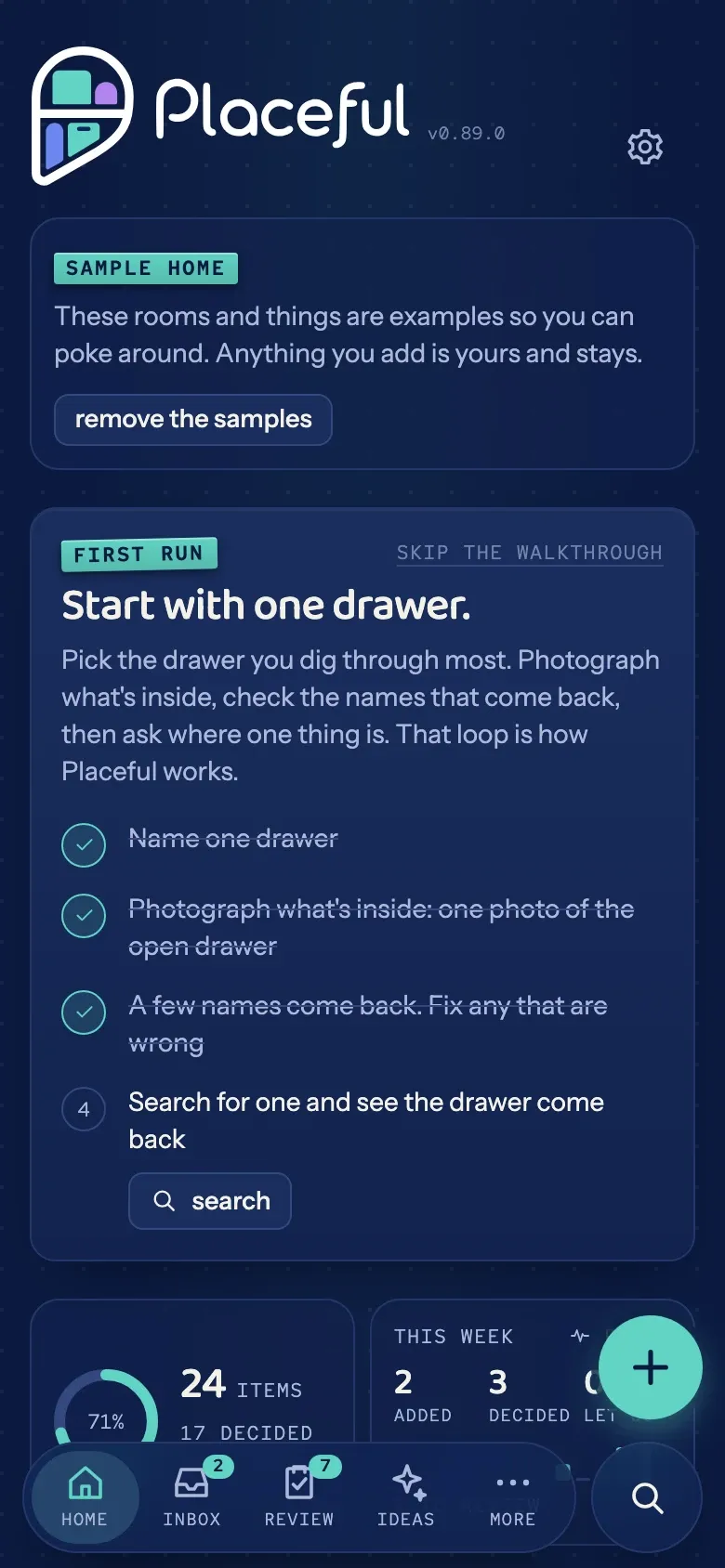
If you would rather explore first, the same card offers the sample home, a furnished inventory you can load and remove with one tap.
You can bring the walkthrough back any time from Settings, under Getting started.
Put it on your phone
Section titled “Put it on your phone”In Safari, tap Share and choose Add to Home Screen. Placeful installs like an app, with its own icon and full-screen view. The installed copy keeps its own sign-in, so enter your email code once more there.
On iOS you can also join the TestFlight beta for the native app.
Staying current
Section titled “Staying current”Placeful updates itself. When a new version is ready, a small banner offers a refresh. You can also check by opening Settings and tapping the version line at the bottom.